> ## Documentation Index
> Fetch the complete documentation index at: https://www.pickfu.com/docs/llms.txt
> Use this file to discover all available pages before exploring further.
# PickFu
> PickFu documentation for collecting instant consumer feedback through the MCP server, CLI, and REST API across AI and developer workflows.
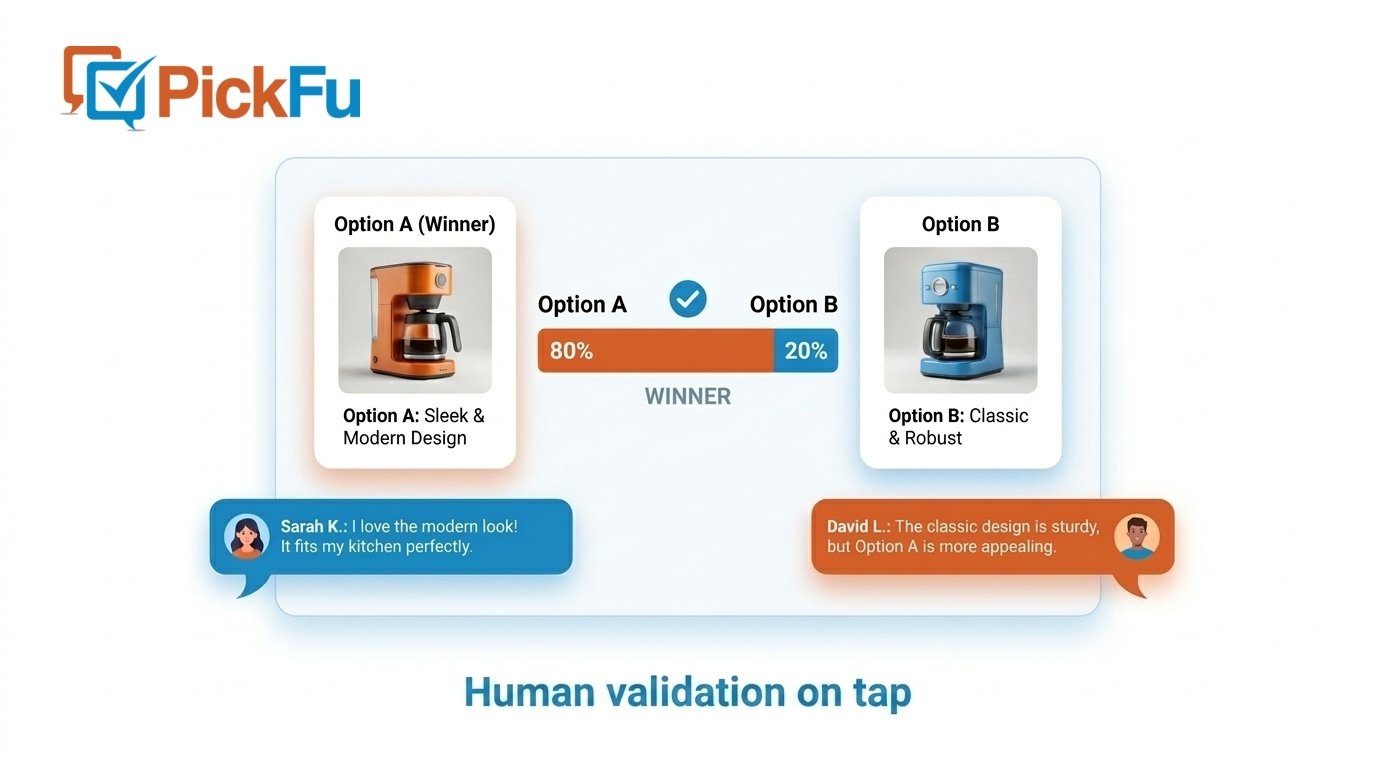 ## Welcome to PickFu
PickFu gives you instant consumer feedback to make better product decisions. Integrate PickFu directly into your AI and agentic workflows using our MCP server and CLI.
Use PickFu with Claude, ChatGPT, Cursor, Notion, and other AI assistants.
Create and manage polls from the command line.
Learn about survey types, targeting, and results.
Write better questions and get more useful feedback.
## How it works
Generate options with AI, validate them with real people, and loop until you're confident.
## Welcome to PickFu
PickFu gives you instant consumer feedback to make better product decisions. Integrate PickFu directly into your AI and agentic workflows using our MCP server and CLI.
Use PickFu with Claude, ChatGPT, Cursor, Notion, and other AI assistants.
Create and manage polls from the command line.
Learn about survey types, targeting, and results.
Write better questions and get more useful feedback.
## How it works
Generate options with AI, validate them with real people, and loop until you're confident.

 ## Built for AI and agentic workflows
PickFu is designed to work where you already work — inside AI assistants and developer tools:
* **MCP server** — Connect Claude, ChatGPT, Cursor, Notion, or any MCP-compatible client to create polls, check results, generate images, and gather consumer insights through natural conversation
* **CLI** — Automate survey creation and retrieval from scripts, CI/CD pipelines, and developer tools
* **Real-time results** — Get responses in minutes with written explanations from real consumers
* **Audience targeting** — Reach the right respondents by demographics, interests, and geography
## Getting started
Add the PickFu MCP server to your AI client — [setup takes about a minute](/integrations/mcp-server). Works with Claude, ChatGPT, Cursor, Notion, and more.
When you first use a PickFu tool, you're prompted to sign in via OAuth — or use an [API key](/authentication) for automation.
Ask your AI assistant to create a PickFu poll. For example: "Create a PickFu poll comparing these two product images."
## Need help?
Reach out to our team for assistance.
Learn more about PickFu and our services.
## Built for AI and agentic workflows
PickFu is designed to work where you already work — inside AI assistants and developer tools:
* **MCP server** — Connect Claude, ChatGPT, Cursor, Notion, or any MCP-compatible client to create polls, check results, generate images, and gather consumer insights through natural conversation
* **CLI** — Automate survey creation and retrieval from scripts, CI/CD pipelines, and developer tools
* **Real-time results** — Get responses in minutes with written explanations from real consumers
* **Audience targeting** — Reach the right respondents by demographics, interests, and geography
## Getting started
Add the PickFu MCP server to your AI client — [setup takes about a minute](/integrations/mcp-server). Works with Claude, ChatGPT, Cursor, Notion, and more.
When you first use a PickFu tool, you're prompted to sign in via OAuth — or use an [API key](/authentication) for automation.
Ask your AI assistant to create a PickFu poll. For example: "Create a PickFu poll comparing these two product images."
## Need help?
Reach out to our team for assistance.
Learn more about PickFu and our services.